 filaos974
93124b1847
filaos974
93124b1847
|
||
|---|---|---|
| images | ||
| serveurNfcNodeJsVma405 | ||
| .gitignore | ||
| auto_startx_bashrc | ||
| autostart | ||
| autostart_sans_rotation | ||
| branchement_ecran_pi.png | ||
| install_1024x600_vma405_chromium.yml | ||
| install_vma405_chromium_sans_driver_ecran.yml | ||
| readme.md | ||
| rfid_rc522.jpg | ||
| serveurNfcNodeJsVma405.7z | ||
| splash.png | ||
| splashscreen.service | ||
| vma405.jpg | ||
| vma405.js | ||


readme.md
Installation : pi + VMA405 ou RC522
1 - Cloner le projet
2 - Créer une image
-
PI OS Lite LEGACY
-
Utilisateur = sysop
-
Wifi
-
SSH
-
Lancer le logiciel "Raspberry Pi Imager v1.7.3" puis "shift + Ctrl + Alt"
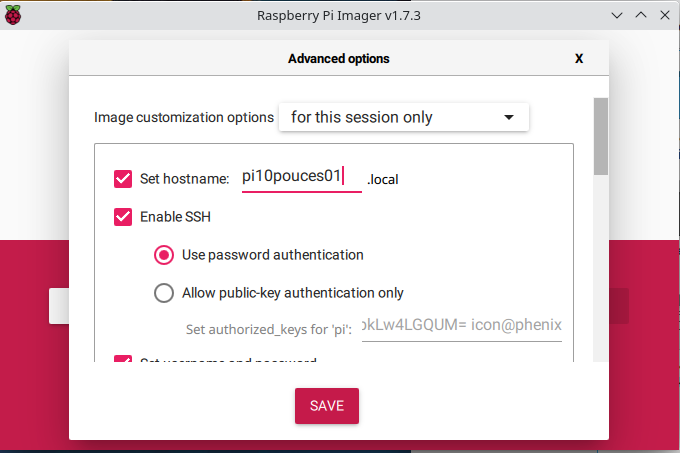
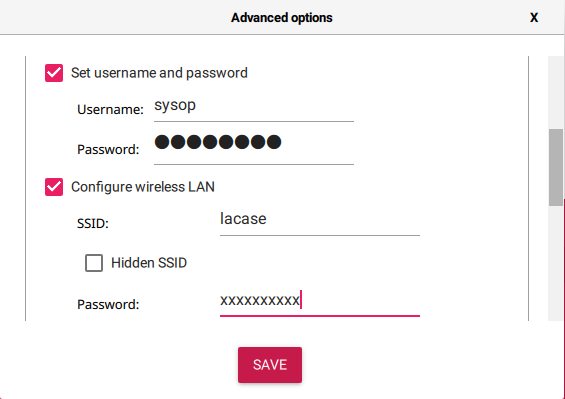
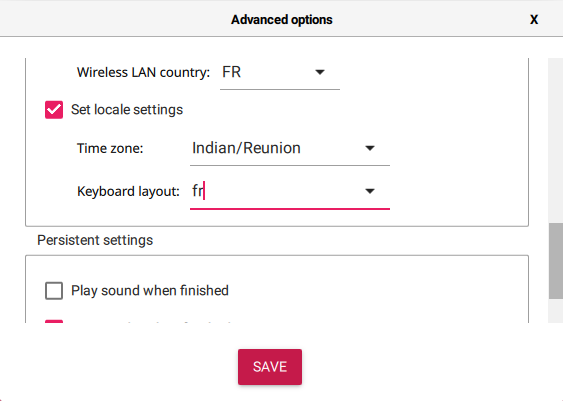
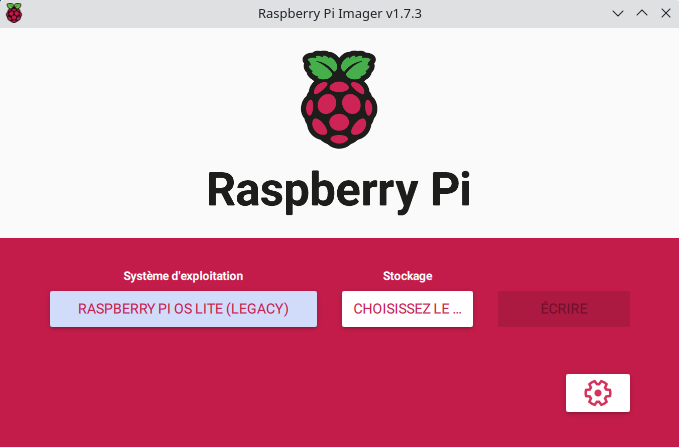
Copie de la clef ssh publique de l'hote sur le pi
cd /home/userHote/.ssh
ssh-copy-id -i id_rsa.pub sysop@192.168.1.9
Installer ansible (sur ubuntu)
sudo apt install software-properties-common
sudo apt-add-repository --yes --update ppa:ansible/ansible
sudo apt install ansible
3 - Ansible(hôte), créer l'inventaire des clients(raspberry pi)
- Soit un pi avec le hostname "pi10pouces01"
sudo nano /etc/ansible/hosts
retour:
pi10pouces01 ansible_host=192.168.1.9 hostname=pi10pouces01 token=xxxxxxxxxxxx password=xxxxxxxxxxxx frontType=FPI serveur=django.local.org protocole=http
-
Lister les machines qui sont gérées: ansible-inventory --list -y
-
tester (utilisateur sysop): ansible pi10pouces01 -m ping -u sysop
4 - Ansible(hôte) installation des machines
-
Modifier le nom du groupe de pi ou le nom du pi à installer dans le fichier "install_1024x600_vma405_chromium.yml",
ligne 2 (- hosts: ) -
A la racine du projet Attention se scripte est dédié à un écran dsi 1024x600:
ansible-playbook install_1024x600_vma405_chromium.yml -K
ou sans configuration écran:
ansible-playbook install_vma405_chromium_sans_driver_ecran.yml -K
Informations
Pin raspberry pi 3 b+
| côté usb | 39 | 37 | 35 | 33 | 31 | 29 | 27 | 25 | 23 | 21 | 19 | 17 | 15 | 13 | 11 | 9 | 7 | 5 | 3 | 1 | côté sdcar |
| 40 | 38 | 36 | 34 | 32 | 30 | 28 | 26 | 24 | 22 | 20 | 18 | 16 | 14 | 12 | 10 | 8 | 6 | 4 | 2 |
Cablage VMA405 ou RC522
VMA405

RC522

| RC522 / VMA405 | PI 3 B+ | Couleur cable |
|---|---|---|
| 3.3v / VCC | 1 | rouge |
| RST | 22 | marron |
| GND | 9 | noir |
| IRQ | pas utilisé | |
| MISO | 21 | jaune |
| MOSI | 19 | vert |
| SCK | 23 | bleu |
| SDA/NSS | 24 | violet |

Pi
| côté usb | 39 | 37 | 35 | 33 | 31 | 29 | 27 | 25 | SCK | MISO | MOSI | 17 | 15 | 13 | 11 | GND | 7 | 5 | 3 | vcc | côté sdcar |
| 40 | 38 | 36 | 34 | 32 | 30 | 28 | 26 | NSS | RST | 20 | 18 | 16 | 14 | 12 | 10 | 8 | 6 | 4 | 2 |

splash screen (écran de boot)
-
sudo nano /boot/config.txt
disable splash=1 -
sudo nano /boot/cmdline.txt
consoleblank=0 loglevel=1 quiet logo.nologo -
Pour afficher l'image
sudo apt install fbi -
Créer un service
sudo nano /etc/systemd/system/splashscreen.service
[Unit]
Description=Splash screen
DefaultDependencies=no
After=local-fs.target
[Service]
ExecStart=/usr/bin/fbi -d /dev/fb0 --noverbose -a /home/sysop/splash.png
StandardInput=tty
StandardOutput=tty
[Install]
WantedBy=sysinit.target
- active le service
sudo systemctl enable splashscreen.service sudo systemctl start splashscreen.service
/ext/xdg/openbox/autostart
#/etc/xdg/openbox/
DISPLAY=:0 xdotool getactivewindow key F5

# stop veille/économie dénergie
xset dpms 0 0 0 && xset s noblank  && xset s off

#Touches pour sortir du serveur X =>  CTRL-ATL-Backspace
setxkbmap -option terminate:ctrl_alt_bksp

sed -i 's/"exited_cleanly":false/"exited_cleanly":true/' ~/.config/chromium/Default/Preferences
sed -i 's/"exit_type":"Crashed"/"exit_type":"Normal"/' ~/.config/chromium/Default/Preferences

# vidage du cache chromium
rm -fr /home/sysop/.cache/chromium
rm -fr /home/sysop/.config/chromium/Default/

# orientation de l'écran
xrandr --output DSI-1 --rotate right

# lance chromium avec un user agent spécifique hostname,password,periph,ip (provenant en partie de .chromium_env)
cd /home/sysop/serveurNfcNodeJs/
node serveur_nfc.js
/home/sysop/.bashrc (ajouter)
[[ -z $DISPLAY && $XDG_VTNR -eq 1 ]] && startx -- -nocursor